

Ask AI
Ask in plain words. Bhoral writes the query, runs it read-only and shows every step.
Ask AI turns a plain-language question into a query, runs it as you, and answers with a chart or a table. It shows its work so you can check it.
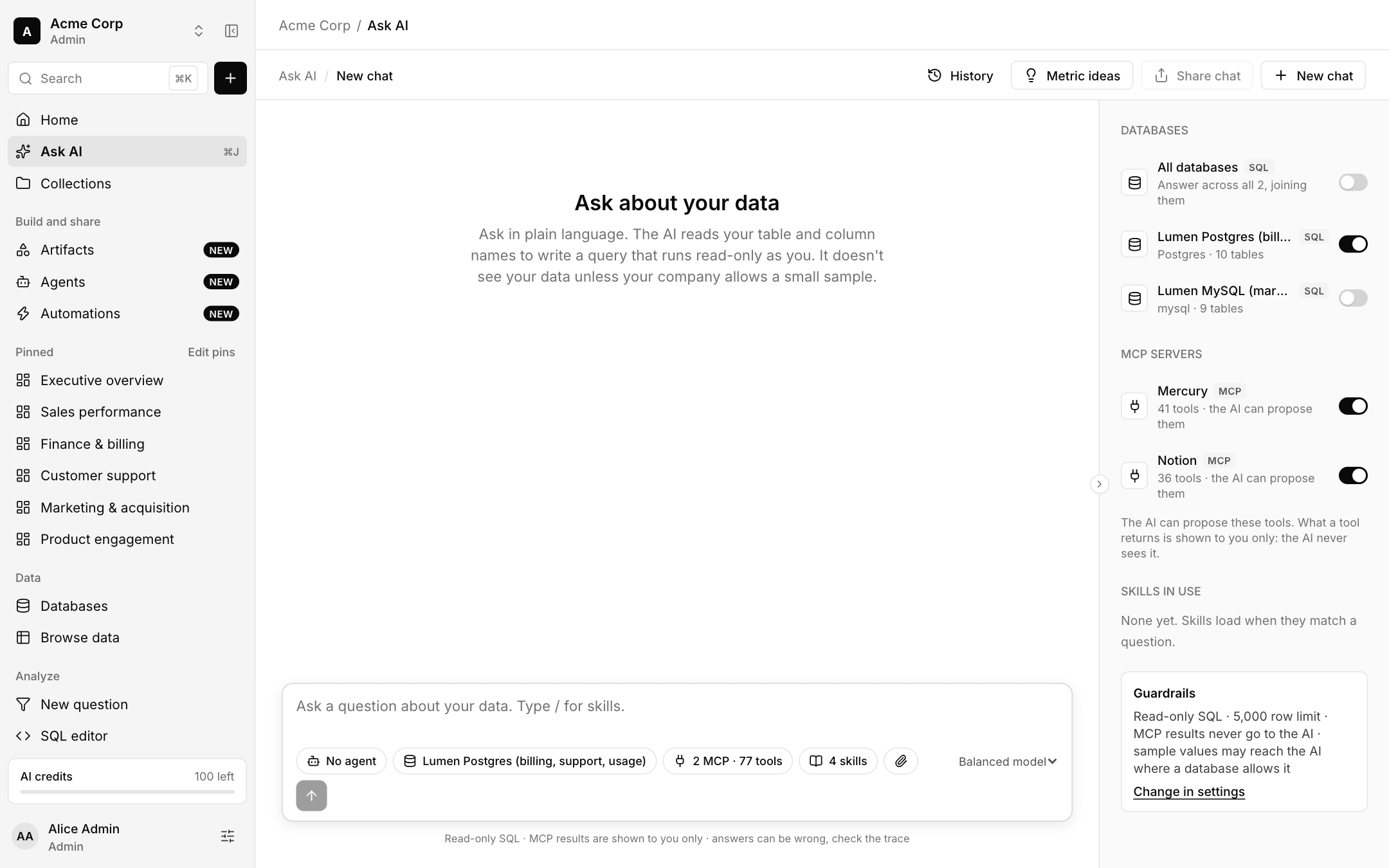
Ask a question
Open Ask AI (⌘J). On the right, choose the databases to answer from. All databases answers across every connection and joins them.
Type a question. Use / to call a skill by name, and the paperclip to attach a file.
Read the answer, open the step trace, and use Show SQL to see the query. Save useful answers as a question or add them to a dashboard.
What the AI sees
The AI reads your table and column names, types and descriptions to plan a query. It does not see your rows unless your company allows a small sample. Results come back to you, not to the model.
Guardrails
- Read-only SQL with a 5,000 row limit.
- MCP results are shown to you only and never go to the AI.
- Permissions, row rules and masks are enforced in code, with the same rules as the person asking.
- The AI uses a verified metric first when one fits, and labels each answer: verified metric, metric not yet verified, or ad hoc SQL.
Choose agent, tools and model
- Agent: a named assistant for one job, see Agents.
- MCP: which connected servers the AI may propose tools from, see MCP servers.
- Skills: which skills are loaded when they match a question, see Skills.
- Model: Balanced, Most capable or Fastest.
Other tools in the header
- History reopens earlier chats. New chat starts fresh.
- Metric ideas suggests metrics from your data and opens one in the editor with its details filled in.
- Share chat shares a conversation with your company.
Answers can be wrong
Check the trace on anything that matters. A thumbs up on a good answer sends it for review in Verified questions.