

MCP servers
Connect other apps through MCP and choose which tools the AI may use.
MCP servers let Ask AI reach tools that are not databases, such as Notion, Linear, Jira, GitHub, Google Sheets, Slack, Salesforce and Stripe. You choose which of their tools the AI may use.
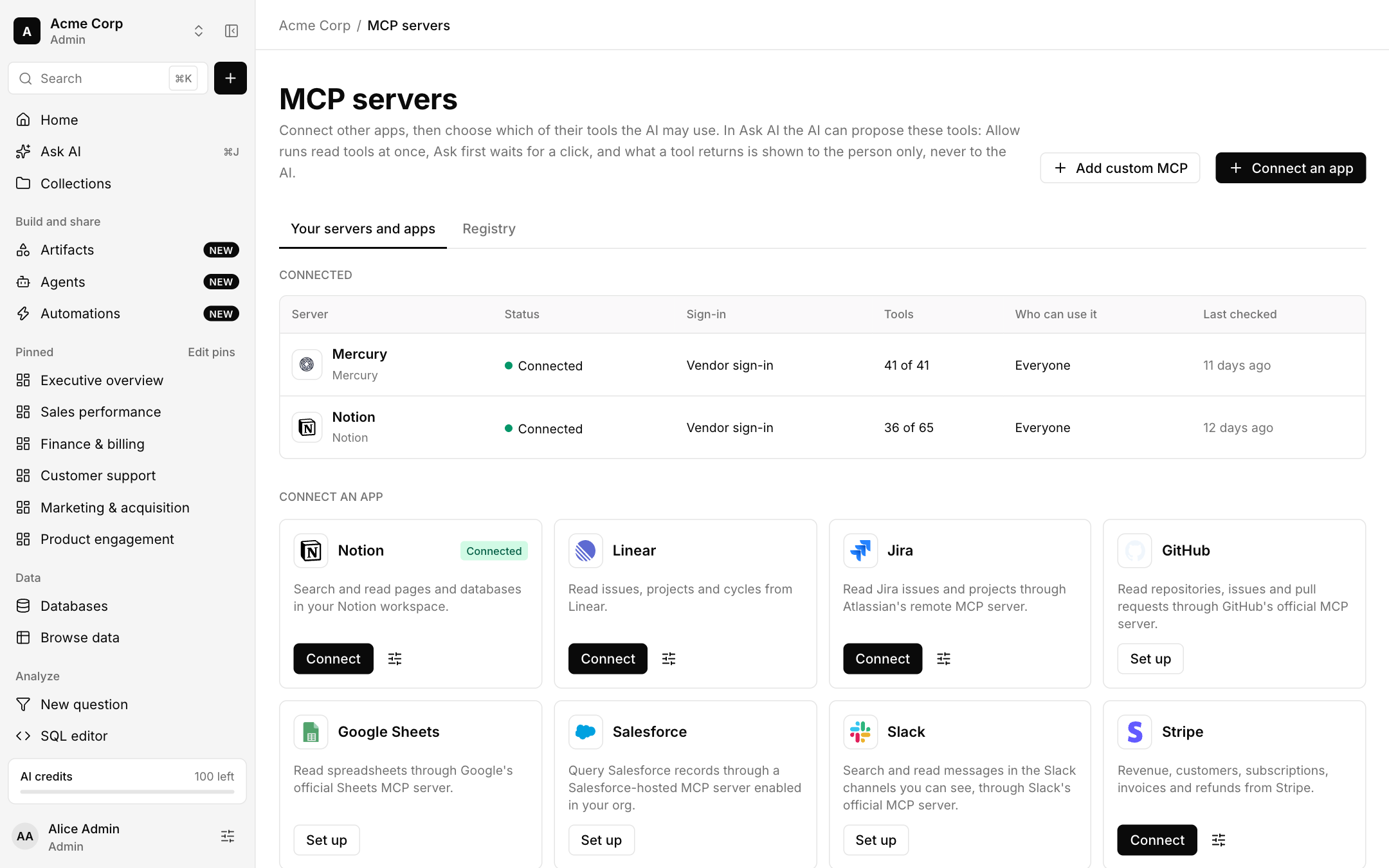
Connect an app
Open MCP servers and look under Connect an app. Apps marked Connect sign in through the vendor. Apps marked Set up need an app registration first, and the dialog explains the steps.
Sign in with the vendor. Bhoral discovers the server's tools.
Choose which tools are enabled and who can use the server. A server shows how many tools are enabled, for example 36 of 65.
You can also use the Registry tab to browse servers, or Add custom MCP to add one by address under Advanced.
Tool policies
Each tool has a policy:
| Policy | Behavior |
|---|---|
| Allow | Read tools run at once when the AI proposes them. |
| Ask first | The tool call waits for your click. |
| Block | The tool is not available. |
Write tools and unknown tools always wait for a one-time confirmation tied to you, the chat and the exact arguments.
Results stay with you
What a tool returns is shown to you only. It is never sent to the AI, so a tool result cannot steer the model.
Who can use a server
Each server has an audience. Admins can also give or remove access for groups on the Groups and permissions page. See Access control.